Interactive session#
To open seastersdb interactive session, simply type the following from a terminal with
your seasters environment activated:
seastersdb &
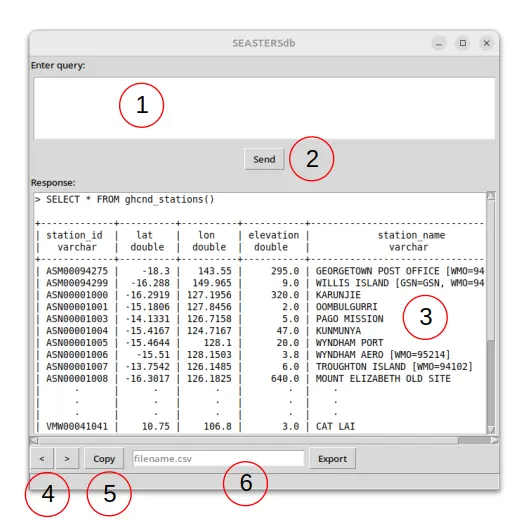
A window should open as in the following image. The interface is quite simple:
On top is the area to type your SQL query.
Enterbreaks line within this query; andCtrl + Enteris equivalent to clicking on the Send button. After sending your first query, you may use thePage UpandPage Downkeys to navigate through your query history since the beginning of the session.The Send button executes the query and prints its response in the response area below. This also clears out the query area.
The response area is blank at start, then contains the response to the queries sent from the query area. The query is rewritten first, each line prepended with
'> '. It is followed by the result of the query execution: it is either an error in which case you get the full error message; or a preview of the resulting table. (At this stage, no data is actually loaded yet.)Left and right arrow buttons enable navigating through the successive responses of your queries during this session, updating the response area adequately.
The Copy button copies to clipboard the query currently shown in the response area.
The filename.csv form and its Export button are finally here to fully retrieve the data currently previewed in the response area and exporting it in the
.csvformat following the provided file name.
This program can be used for:
Trial-and-error SQL queries before copying the successful query and use it with the Python API version of seastersdb.
Looking into the SEASTERS database interactively, trying different filters while looking at the number of rows in the resulting preview.
Actually exporting the result of a query to work on the retrieved data using another tool.